As explained in About Correspondence, you can create and maintain correspondence records for patient cases. This article explains all types of correspondence records other than Case Notes. For more information, see Create and Manage Case Notes article.
To perform the following procedures, open the Patient Manager.
Create Correspondence Record
This procedure applies to Correspondence, Email, Phone, Fax, and Accounts Receivable records.
- Locate a patient and select a case.
- Click on the Correspondence tab, then click [New Correspondence] on the toolbar.
- From the Correspondence Type drop-down list, select the type of correspondence you want to create.
- To create a blank record, in the Duplicate from drop-down list, select Blank.
- To base the new record on an existing record of the same type, in the Duplicate from drop-down list, select Previous then select one from the list.
- Click Open.
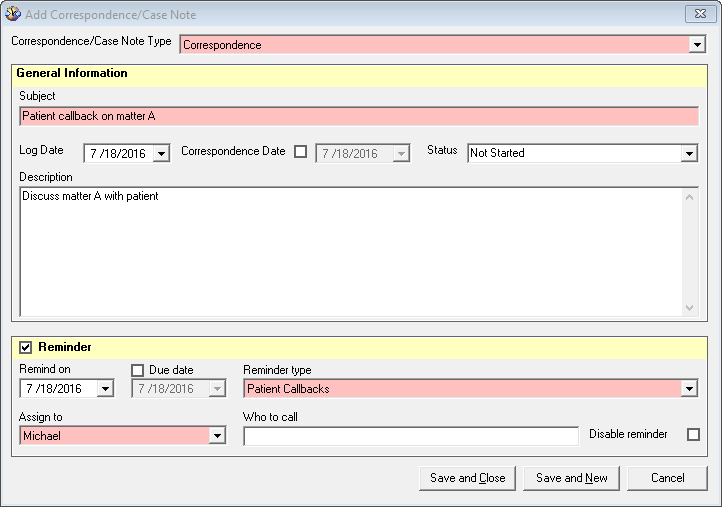
The Add Correspondence/Case Notes window opens.

- Enter a Subject for the correspondence.
Tips:- The system defaults the correspondence record to the current date. You can change it to any other date by checking the box.
- Optionally, select a Status for the correspondence record. This information appears within Correspondence tab and can be used to group records by status.
- If the Correspondence Type is Account Receivables or Correspondence, you can trigger a reminder by checking the Reminder box. Specify the Remind on date and, optionally, add a Due date, then select the Reminder type and Assign To. For more information see Create and Schedule Reminders.
- Enter a Description for the correspondence record.
- Click Save & Close.
Create System Letter (Letter to…)
This procedure applies to System Letter records. These templates are specific to a case type (e.g., Letter to Family Physician for MVA Patient or Letter to WSIB Adjustor).
- Locate a patient and select a case.
- Click on the Correspondence tab, then click [New Correspondence] on the toolbar.
- From the Correspondence Type drop-down list, select Letter to… (the name varies depending on case type).
- To create a blank letter, in the Duplicate from drop-down list, select Blank.
- To base the new letter on an existing one, in the Duplicate from drop-down list, select Previous then select one from the list.
- To base the letter on a preset, in the Duplicate from drop-down list, select Preset and select one from the list.
- Click Open.
- In the Letter to… screen, complete the fields as necessary.
- Click Save & Close.
Create Letter
This procedure applies to rich text format types of letters.
- Locate a patient and select a case.
- Click on the Correspondence tab, then click [New Correspondence] on the toolbar.
- From the Correspondence Type drop-down list, select Letter.
- To create a blank letter, in the Duplicate from drop-down list, select Blank.
- To base the new letter on an existing one, in the Duplicate from list, select Previous then select one from the list.
- To base the letter on a preset, in the Duplicate from drop-down list, select Preset and select one from the list.
- Click Open.
- In the text editor window, compose the letter, using the formatting and editing tools as appropriate.
- Click [Save] on the toolbar.
- Enter a Document Name and Description, then click OK.
Edit Correspondence Record
- Locate a patient and select a case.
- Click on the Correspondence tab.
- Double-click on a correspondence record.
- Make changes, then click Save & Close.
Note: There is an option to disable the reminder, usually you would do this after it was triggered and you want it to disappear from the list of reminders.
Delete Correspondence Record
- Locate a patient and select a case.
- Click on the Correspondence tab.
- Select a correspondence record, then click [Delete Correspondence] on the toolbar.
- Click Yes when prompted.